The Reviews Monitoring screen is the central view for all reviews pulled into Yext. This article covers how to navigate the screen, use filters to find the reviews you need, set up notifications, and take bulk actions.
Navigate the Monitoring Screen
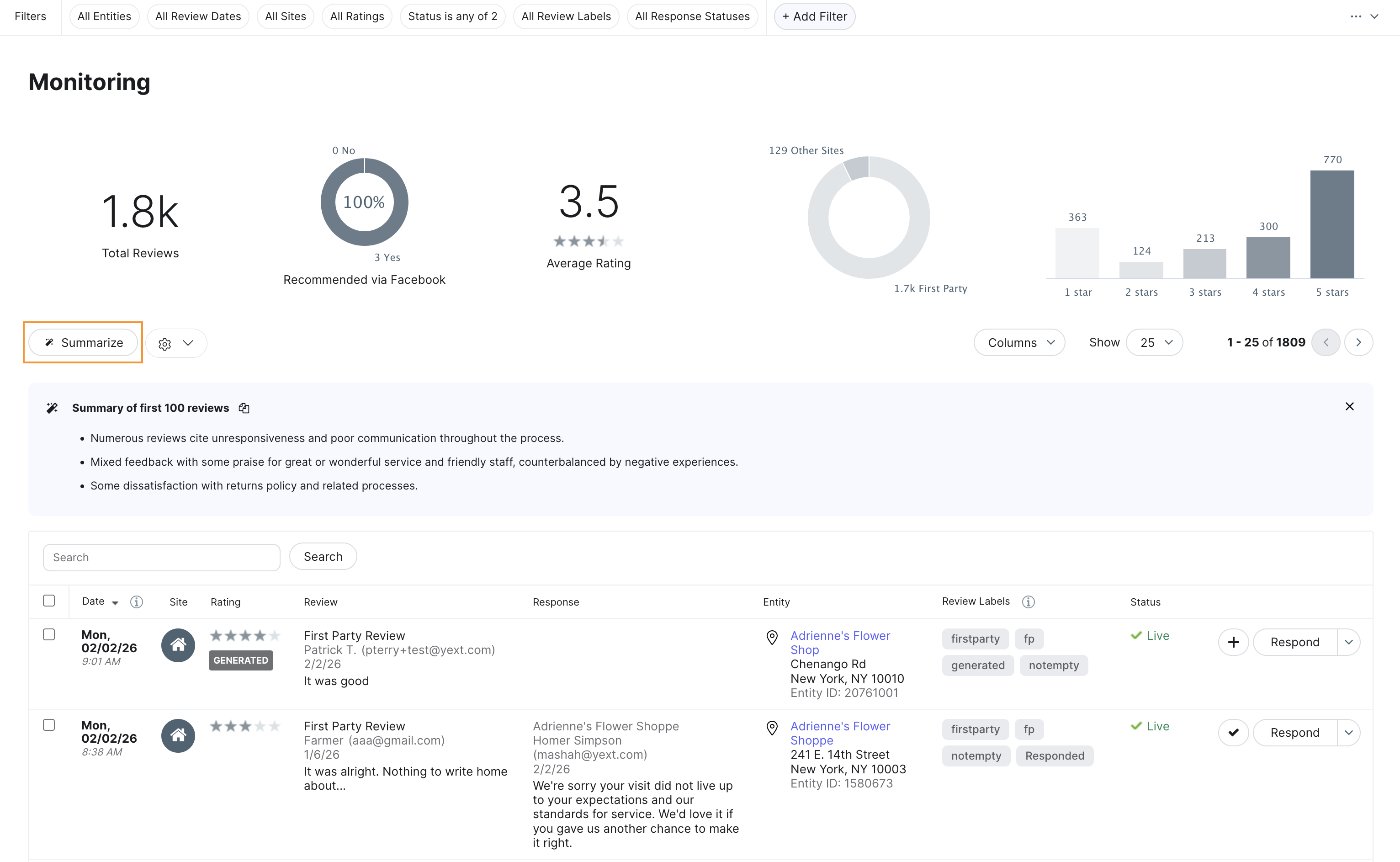
Navigate to Reviews > Monitoring to access the monitoring screen. The main content of the page is the reviews table, which shows every review pulled into Yext across all entities and publishers.
By default, each row shows the last updated date, site, rating, review content, response status, entity, review labels, and status. You can customize which columns appear by clicking the Columns dropdown above the table. For example, select Media to show thumbnails for attached media items. Click any column header to sort by that column.
The table shows 25 reviews per page by default. Change this to 50 or 100 using the dropdown at the bottom of the table.
Click on a review to see more details.
At the top of the page, high-level metrics update dynamically based on any filters you apply:
- Total Reviews: total number of reviews in the current view
- Recommended via Facebook: percentage of Facebook Recommendations marked as Recommended vs. Not Recommended
- Average Rating: overall average star rating
- Breakdown of Sites: distribution of reviews across publishers
- Breakdown of Star Rating: number of reviews per star rating
These metrics are interactive. Clicking a bar in the star rating chart, for example, filters the table to show only reviews of that rating.
Summarize Reviews on Demand
To get an instant AI-generated summary of the reviews in your current view, click Summarize at the top of the reviews list. The system analyzes the most recent 100 reviews matching your active filters and surfaces key themes and overall sentiment.
The summary is context-specific: if you change your filters, click Summarize again to generate a new analysis for the updated results. This is useful for quickly identifying trends in a specific region, entity group, or time period without manually reading through reviews.
Use Basic Filters
Six basic filtering options appear at the top of the page:
- Entity: filter by individual entity, folder, or label
- Created Date: filter by a date range based on when the review was originally posted on the publisher
- Site: show reviews from specific publishers or exclude a publisher from results
- Rating: filter for reviews equal to, less than or equal to, or greater than or equal to a specific star rating
- Status: filter for Live, Quarantined, or Removed reviews
- Label: filter by review label
- Response Status: filter for Awaiting Response, Publishing Response, Response Failed, Response Succeeded, or Compliance Pending
Use Advanced Filters
Advanced filters give you more precise control over which reviews appear. Click Add Filter at the top of the page to access the full list of available filters.
Most options are self-explanatory, but a few are worth calling out:
- Review Content: filter for reviews containing specific words or phrases, reviews with no content, or reviews with any content — useful for building notification rules or finding reviews that need a particular type of response
- Generated: isolate reviews that came through Review Generation
- Last Updated Date: find reviews that have been edited since your last response, which may warrant a follow-up
- Sentiment Keywords and Sentiment Modifiers: filter for reviews mentioning specific topics identified by Sentiment Analysis
If you apply multiple filters, a review must satisfy all criteria to appear in the results.
Set Up Notifications
Notifications alert you when new reviews matching specific criteria come in. There are two ways to create a notification.
From Account Settings or the monitoring screen:
- Navigate to Account Settings and click Notifications, or click the settings icon on the monitoring screen and select Manage Notifications.
- Click Create a new notification or Add Custom Notification.
- Select Reviews.
- Choose whether to notify on new reviews only, new and updated reviews, or new or updated Facebook comments.
- Add filter criteria using the same options available in advanced filters.
- Select recipients: Owner, All Users, Specific User Roles, or specific users and email addresses.
- Select delivery method: in-platform, email, or both.
- If delivering by email, set the frequency (Event Triggered, Daily, Weekly, Bi-Weekly, or Monthly), review the email content, and set the format (reviews inline or attached as a spreadsheet).
- Enter an internal name for the notification and click Save.
From an existing advanced filter:
- Apply an advanced filter using the steps above.
- Click the three dots on the right side of the filter bar and select Notify me of all reviews like these.
- Complete the notification setup as described above. Your filter criteria will be pre-populated.
Take Bulk Actions
Select one or more reviews to display the actions bar. Available actions include the following:
- Respond: respond to the selected reviews
- Export: download selected reviews as a CSV or Excel file. Note that some publishers are not supported for export.
- Share: email selected reviews to any email address
- Manage Review Labels: add, remove, or replace labels on selected reviews in bulk
To select all reviews matching your current filters, use the checkbox at the top of the table and then select all matching results when prompted.
Review Statuses
Every review in Yext has a status that indicates whether it is published, on hold, or removed. The status appears in the reviews table and can be used as a filter.
Live
The review is published — either on a third-party publisher site or on your website if it is a first-party review. Only reviews with a Live status are returned by the Streams API.
Quarantined
The review is a first-party review that is being held during a quarantine period before being published to your website. The review displays the number of quarantine days remaining. You can approve it early, flag it for removal, or remove it directly depending on your permissions. See Manage First-Party Reviews for steps.
Removed
The review is no longer published. A review can be removed in several ways:
- The reviewer deleted their review on the publisher site
- The publisher removed the review through their own screening process
- Yext's screening process flagged the review for an inappropriate word — these appear with the descriptor "Banned Word"
- A user with the appropriate permissions removed a first-party review directly in Yext
- A first-party review was flagged for removal and an admin approved the removal request
You can configure whether third-party reviews deleted from a publisher are kept in Yext with a Removed status or permanently deleted from the platform. See Configure Behavior for Deleted Reviews for steps.
Note: If an entity is subject to GDPR, removed reviews on that entity are always permanently deleted from the Yext platform immediately, regardless of your Removed Review Behavior setting.
Fetch Reviews via API
You can fetch reviews stored in your account using the Management API instead of the Monitoring screen. Query parameters let you filter by entity, publisher, date range, and other criteria.
| Endpoint | Description | Request |
|---|---|---|
| Reviews: List | Retrieves all reviews matching the criteria you provide. Requires Reviews: READ permission. | GET https://api.yext.com/v2/accounts/{accountId}/reviews |
| Review: Get | Retrieves a specific review by ID. Requires Reviews: READ permission. | GET https://api.yext.com/v2/accounts/{accountId}/reviews/{reviewId} |
You can find a review ID in the Reviews: List response, or by clicking View or Respond on a review in Yext and checking the URL.
A few things to note:
- Reviews for certain publishers aren't available to fetch via API.
- If you plan to publish fetched reviews on a consumer-facing website, filter for
status = "LIVE"andflagStatus = "NOT_FLAGGED"to exclude quarantined, removed, or flagged reviews from your results.